Working with cards in Otper
Cards are the working records inside Otper. A good card tells the team what needs to happen, who owns it, when it is due, what decisions were made, and how the work changed over time.
Step-by-step
-
1. Create one card for one unit of work
Add a card from any list and give it a specific title. Keep the scope narrow: one task, request, bug, decision, or deliverable per card. This keeps ownership, due dates, and reporting meaningful.
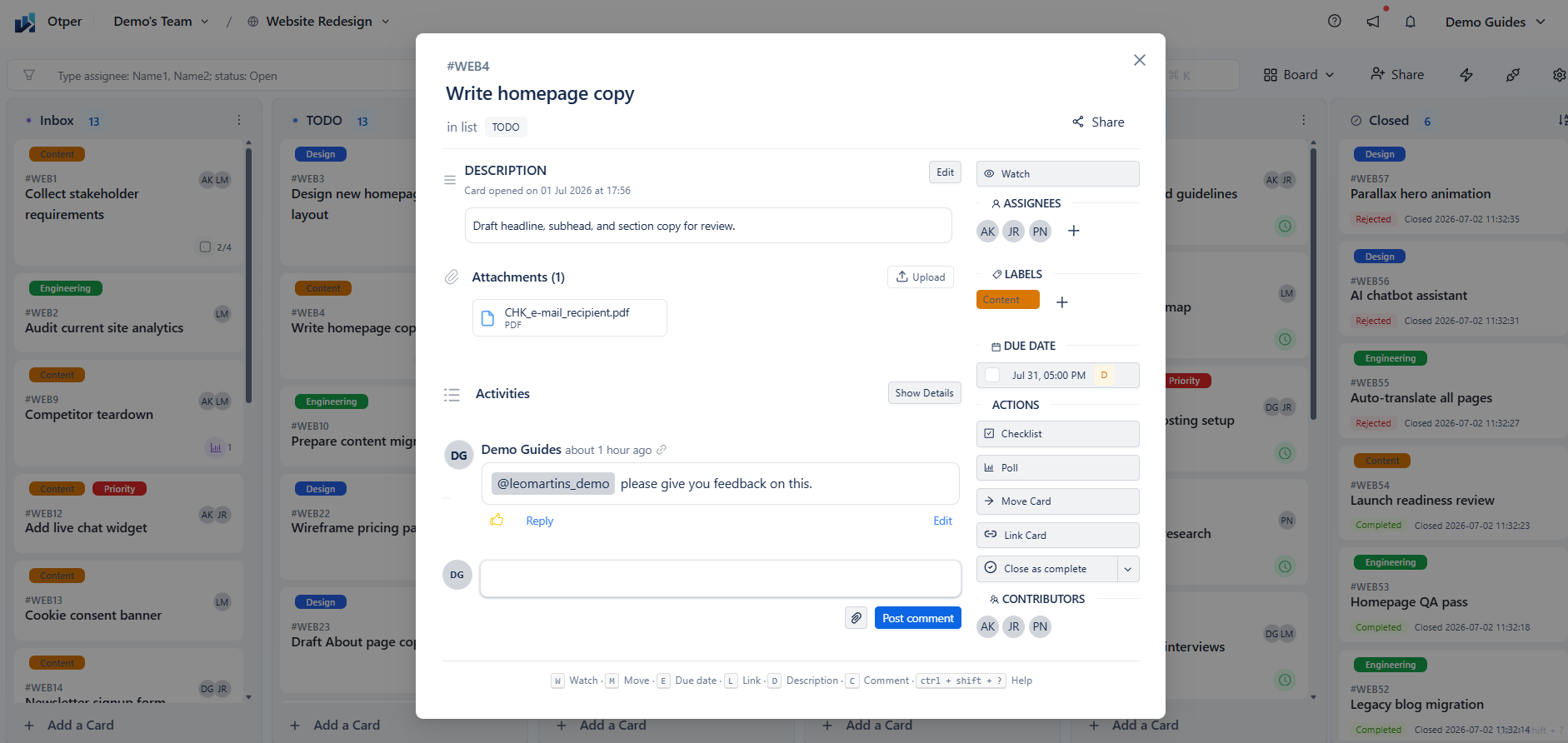
A card brings ownership, dates, checklist items, files, comments, and activity into one record. -
2. Assign owners, dates, and labels
Add the members responsible for the work, set start and due dates where there is a real commitment, and apply labels consistently. Labels can represent priority, workstream, customer, type, risk, or any other signal your team uses to filter and report work.
-
3. Break down the work
Use the description for context and checklists for the steps that must be completed before the card is done. For structured board-specific information, use custom fields so the data stays consistent across cards.
-
4. Keep collaboration on the card
Use comments, replies, mentions, attachments, and polls to keep decisions close to the work. Mention a teammate with
@name, attach supporting files, or create a poll when a card needs a quick team decision. The mobile app is useful when files or photos need to be added away from a desk. -
5. Move, watch, close, or reopen cards as work changes
Move cards across lists as their status changes. Watch important cards to keep them easy to revisit, close cards when the work is no longer active, and reopen them when follow-up work belongs in the same record.
Card hygiene checklist
- Title describes one unit of work
- Responsible members are assigned
- Due date is set where there is a commitment
- Labels match the board's naming conventions
- Checklist covers the visible definition of done
- Key decisions are captured in comments or polls
- Files and links are attached directly to the card
FAQ
Can a card have more than one member?
Yes. Add everyone doing the work, but keep one person clearly responsible for moving the card forward.
What is the difference between a checklist and a card?
Use a checklist for steps inside one deliverable. Create separate cards when each item has different owners, deadlines, files, or discussion.
What happens when a card moves?
The card changes status by moving to another list, and the activity history keeps a record of what changed.
Troubleshooting
| Problem | Fix |
|---|---|
| A mention did not notify anyone | Confirm the person has access to the board and has notification preferences enabled for mentions. |
| An attachment will not upload | Check the file size, network connection, and device file or photo permissions. |
| A card cannot be moved | Check whether the card or board is closed, and confirm your board role allows edits. |
Related guides
Ready to track your work as cards?