How to set up a Kanban board in Otper
A well-designed board gives your team one place to see what is new, what is active, who owns it, and what is blocked. Use this guide to build a board that stays useful after the first week.
Step-by-step setup
-
1. Create one board per stream of work
From the dashboard, create a board and name it after a specific stream, project, or queue. Examples include Website Launch, Support Escalations, Hiring Pipeline, or Sprint 14. Keeping each board focused makes ownership and reporting easier to understand.
When you create a board you can also customize its key and slug to short, unique values. The key prefixes every card ID on the board (for example, WEB-12), and the slug forms the board’s URL, so clear values here keep cards and links easy to recognize later.
-
2. Shape lists into your workflow stages
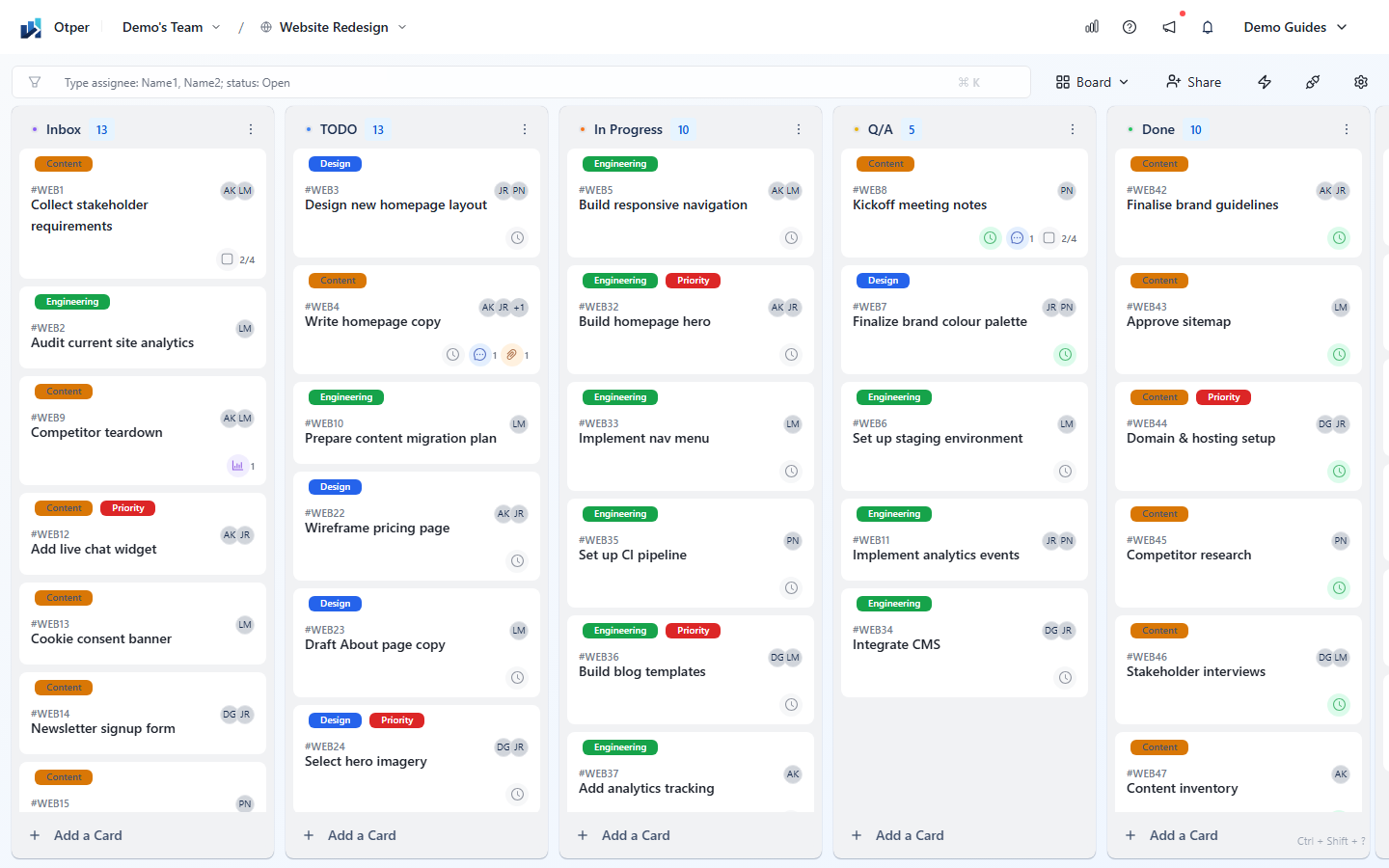
New boards start with Inbox, TODO, In Progress, and Done. Treat each list as a stage of work. Add stages such as In Review, QA, Waiting, or Blocked only when they represent real handoffs. When cards collect in one list, the bottleneck is visible immediately.
-
3. Add work as cards
Add one card per task, request, bug, or deliverable. Open the card to assign members, set start and due dates, apply labels, add checklists, attach files, create polls, and keep comments in context. Read the card guide.
-
4. Invite members and set board access
Invite teammates from board settings or with a board invite link. Assign a role that matches the work they need to do, then use board settings to manage members, labels, limits, closed cards, custom fields, webhooks, and other board-level controls.
Board views: Board, List, and Gantt
The same board data can be reviewed in different views without duplicating work:
- Board - Kanban columns for daily execution and bottleneck detection.
- List - a compact card list for scanning, sorting, and triage.
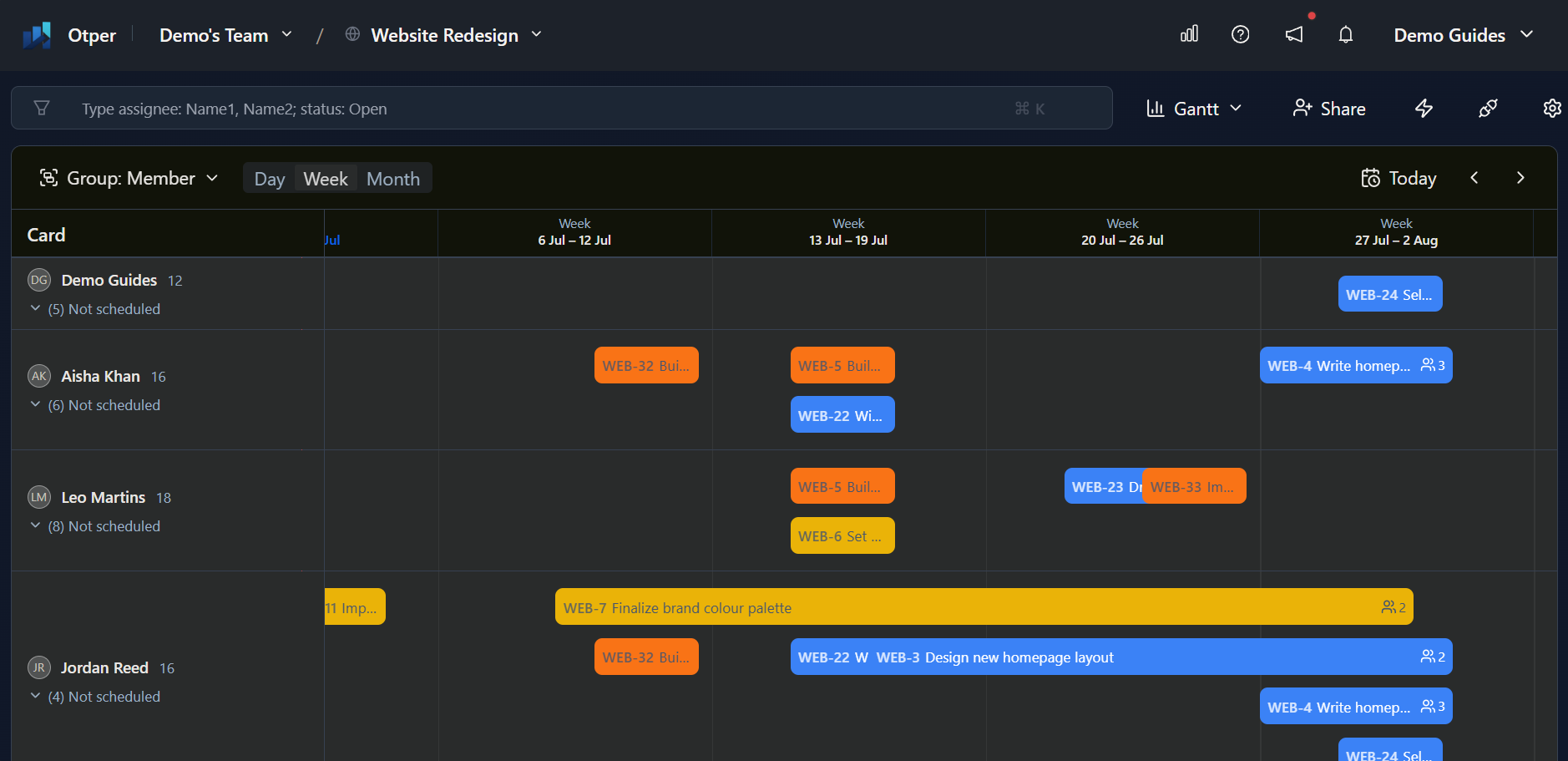
- Gantt - a timeline for scheduled work, due dates, and cross-list planning.
Example workflow
For a delivery project, start with Inbox, TODO, In Progress, In Review, and Done. Require an owner before a card leaves TODO, use labels for workstream or priority, and review the Gantt view weekly to catch late or overloaded work. See the project management guide.
Setup checklist
- One board per project, queue, or operational stream
- Lists named after real workflow stages
- Labels agreed before the board fills up
- Members invited with appropriate board roles
- Every committed card has an owner and due date
- Board, List, and Gantt views reviewed by the team
FAQ
How many boards should a team have?
Use one board per active stream of work. If two boards need the same cards or the same daily discussion, they are probably one board.
Can I change lists after work has started?
Yes. Rename or reorder lists as the workflow matures. Existing cards keep their activity history.
Troubleshooting
| Problem | Fix |
|---|---|
| Cards pile up in one list | Treat that list as the bottleneck. Add capacity, split the stage, or limit new work entering it. |
| A member cannot move cards | Check their board role and confirm the board or card is not closed. |
| A teammate cannot see the board | Invite them to the board or send a valid board invite link, then confirm their role. |
Related guides
Ready to build your first board?